How to Use GB WhatsApp on Two Phones / Devices at Once
Is It Possible to Use GB WhatsApp on Two Phones?
Yes, it is possible to use GB WhatsApp on two phones at the same time using the same phone number. GB WhatsApp offers a Companion Mode or Linked Devices feature that allows this without logging out of your primary device. This is perfect for people who carry both a personal and work phone.
Two Methods to Use GB WhatsApp on Two Phones
There are two common approaches depending on your setup and needs.
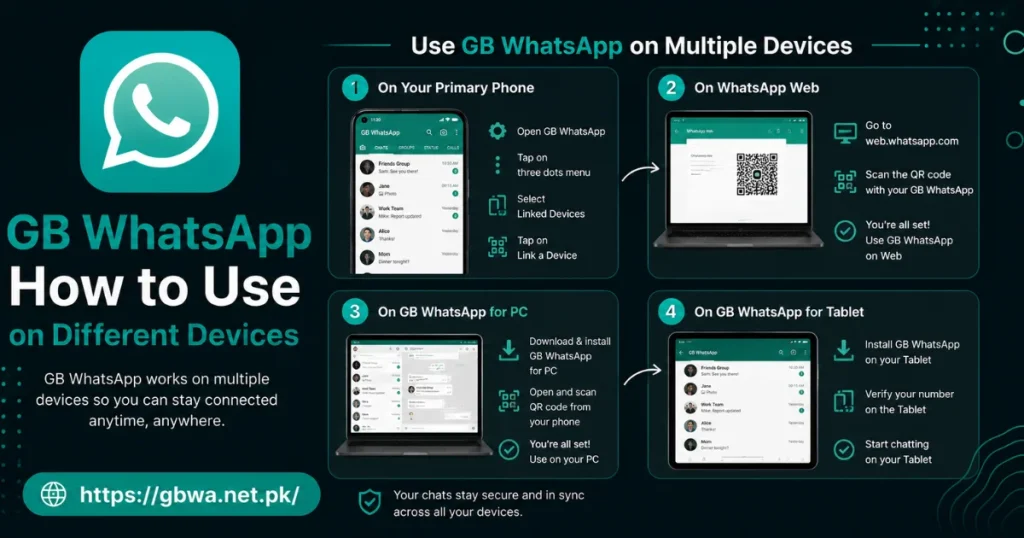
Method 1 Using Linked Devices (Same Number on Two Phones)
This method uses GB WhatsApp’s built-in Linked Devices feature to connect a second phone to your primary account.
- Step 1 – Open GB WhatsApp on Your Primary Phone
- Launch GB WhatsApp on your main device and tap the three-dot menu in the top right corner. Select Linked Devices from the menu.
- Step 2 – Tap Link a Device
- On the Linked Devices screen, tap Link a Device. Your phone may ask for biometric or PIN authentication before proceeding.
- Step 3 – Install GB WhatsApp on the Second Phone
- Download and install GB WhatsApp on your second phone from GBWA.NET.PK. Open the app but do not register a new number — instead, select the Use as Companion or Link Existing Account option.
- Step 4 – Scan the QR Code
- The second phone will display a QR code scanner. Use your primary phone to scan the QR code shown on the secondary device. Both phones will now be linked to the same GB WhatsApp account.
- Step 5 – Start Using on Both Devices
- Once linked, you can send and receive messages on both phones simultaneously. Messages sync in real time between the two devices.
Method 2 – Using Two Different Numbers (One on Each Phone)
This method involves using a separate phone number on each device, ideal if you want to keep personal and work accounts completely separate.
- Step 1 – Install GB WhatsApp on Both Phones
- Download and install GB WhatsApp on both devices from GBWA.NET.PK. Make sure you are using the latest version on both phones.
- Step 2 – Register Different Numbers
- On Phone 1, register your personal number. On Phone 2, register your work or secondary number. Each device operates as an independent GB WhatsApp account.
- Step 3 – Use Both Simultaneously
- Both phones will operate independently with their own chats, contacts, and media. There is no syncing between the two accounts in this setup.
Linked Devices – What Works and What Doesn’t
| Feature | Available on Linked Device |
|---|---|
| Send & receive messages | Yes |
| View chat history | Yes (recent only) |
| Make voice/video calls | Yes |
| View status updates | Yes |
| Access archived chats | Limited |
| Change privacy settings | No (primary phone only) |
Tips for Using GB WhatsApp on Two Phones
- Keep both devices updated to the same version of GB WhatsApp
- The primary phone must come online occasionally to keep the linked device active
- Linked devices stay connected for up to 14 days without the primary phone being online
- Avoid logging into the same number on two separate fully independent instances — this may trigger a ban
Troubleshooting Common Issues
| Problem | Fix |
|---|---|
| QR code not scanning | Ensure both phones have a stable internet connection |
| Second phone not receiving messages | Check that the linked device is still connected in Linked Devices settings |
| Linked device logged out automatically | Bring the primary phone online — linked devices disconnect after 14 days of inactivity |
| Messages not syncing | Restart GB WhatsApp on both devices |
Frequently Asked Questions
Visit GBWA.NET.PK for the latest GB WhatsApp download links and guides.