How to Enable Dark Mode / Dark Theme in GB WhatsApp
Why Use Dark Mode in GB WhatsApp?
Dark Mode changes the app’s background from white to dark grey or black, making it easier on the eyes, especially in low-light environments. It also helps save battery life on devices with OLED or AMOLED screens. GB WhatsApp theme offers multiple ways to enable and customize Dark Mode to suit your preference.
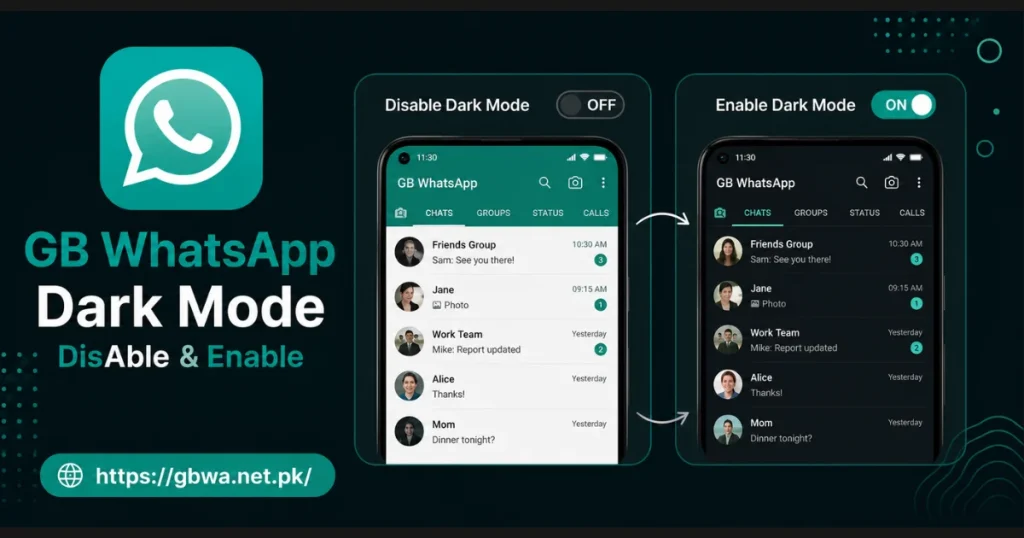
Methods to Enable Dark Mode in GB WhatsApp
GB WhatsApp provides three different ways to turn on Dark Mode. You can use whichever method is most convenient for you.
Method 1 – Enable Dark Mode via WhatsApp Settings
- Step 1 – Open Settings
- Open GB WhatsApp and tap the three-dot menu in the top right corner. Select Settings from the dropdown.
- Step 2 – Go to Chats
- Inside Settings, tap on Chats. You will see a Theme option at the top of the list.
- Step 3 – Select Dark Theme
- Tap Theme and choose Dark from the available options. The app interface will immediately switch to dark mode.
Method 2 – Enable Dark Mode via GB Settings
- Step 1 – Access GB Settings
- Open GB WhatsApp and tap the three-dot menu. Select GB Settings (this is separate from the standard WhatsApp Settings).
- Step 2 – Open Universal Settings
- Inside GB Settings, tap on Universal or General Settings. Look for the Dark Mode or Night Mode toggle.
- Step 3 – Turn On Dark Mode
- Toggle the Dark Mode switch to the ON position. The change will apply instantly across the entire app.
Method 3 – Use Android System Dark Mode
- Step 1 – Open Android Settings
- Go to your phone’s Settings and tap on Display. Look for Dark Theme or Night Mode.
- Step 2 – Enable System-Wide Dark Mode
- Toggle on the Dark Theme option. GB WhatsApp will automatically follow the system setting and switch to dark mode.
- Step 3 – Confirm in GB WhatsApp
- Open GB WhatsApp and verify that dark mode is active. If it does not apply automatically, set the theme to System Default in WhatsApp’s Chat Settings.
Dark Mode vs Light Mode – Quick Comparison
| Feature | Dark Mode | Light Mode |
|---|---|---|
| Eye comfort in low light | Excellent | Poor |
| Battery saving (AMOLED) | Yes | No |
| Readability in sunlight | Lower | Higher |
| Visual appeal (night use) | High | Low |
How to Customize Dark Mode in GB WhatsApp
GB WhatsApp allows you to go beyond the basic dark theme with additional customization options.
- Apply Custom Themes: Go to GB Settings > Themes and browse thousands of dark-themed options
- Change Chat Wallpaper: Set a dark wallpaper in Settings > Chats > Wallpaper for a consistent look
- Adjust Font Color: Some GB versions allow you to change text color to complement the dark background
- Use Scheduled Dark Mode: Enable automatic switching between light and dark mode at set times
Troubleshooting Dark Mode Issues
| Problem | Fix |
|---|---|
| Dark mode not applying | Restart GB WhatsApp after enabling the setting |
| Only part of the app is dark | Update to the latest GB WhatsApp version |
| Dark mode reverts after restart | Set the theme manually in WhatsApp Chat Settings |
| Text hard to read in dark mode | Change font color or apply a compatible dark theme |


