How to Transfer GB WhatsApp Chats to Official WhatsApp
Many users decide to switch back to the official WhatsApp for security or account safety reasons. The good news is that transferring your chat history is possible with a few simple steps. This guide walks you through the entire process clearly and safely.
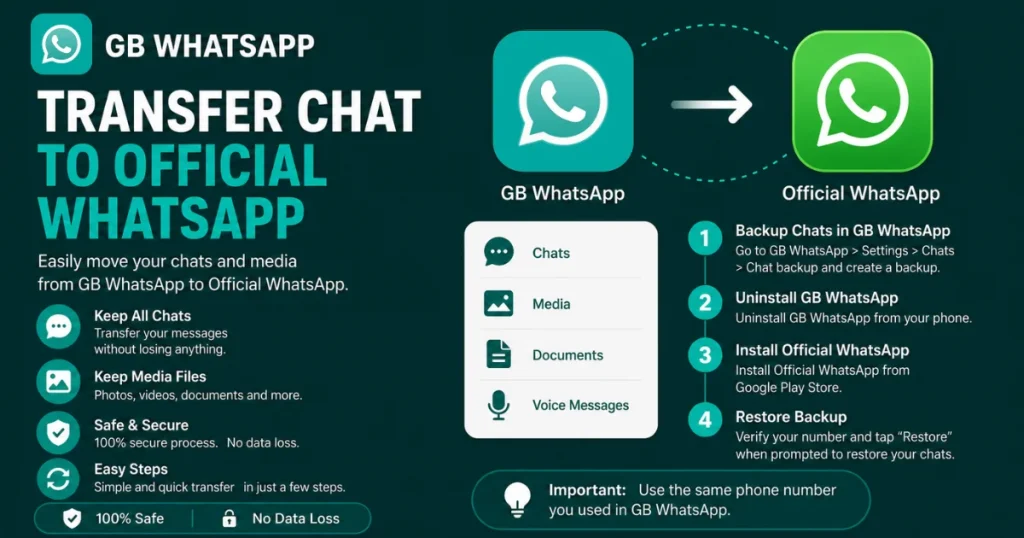
What You Need Before Starting
- GB WhatsApp installed with your existing chats
- Official WhatsApp APK or Play Store access
- A file manager app on your Android device
- At least 200 MB of free storage space
Understanding the Folder Difference
GB WhatsApp stores its data in a folder named GBWhatsApp on your internal storage. Official WhatsApp stores its data in a folder named WhatsApp. To transfer chats, you need to copy the backup files from the GB folder into the WhatsApp folder before installing the official app.u
How to Transfer GB WhatsApp Chats to Official WhatsApp
- Step 1 – Back Up Your GB WhatsApp Chats
- Open GB WhatsApp and go to Settings > Chats > Chat Backup. Tap Back Up and wait for the process to complete.
- Step 2 – Locate the GB WhatsApp Backup Folder
- Open your file manager and navigate to Internal Storage > GBWhatsApp > Databases. You will see backup files named something like msgstore.db.crypt12.
- Step 3 – Copy the Backup Files
- Copy the entire Databases folder from the GBWhatsApp directory. Do not cut or move — always copy to avoid data loss.
- Step 4 – Create the WhatsApp Folder
- Navigate back to Internal Storage and look for a folder named WhatsApp. If it does not exist, create a new folder with exactly that name and create a subfolder inside it named Databases.
- Step 5 – Paste the Backup Files
- Paste the copied backup files into Internal Storage > WhatsApp > Databases. Make sure the file names remain unchanged.
- Step 6 – Install Official WhatsApp
- Download and install the official WhatsApp from the Google Play Store. Open the app and enter the same phone number you used in GB WhatsApp.
- Step 7 – Restore Your Chats
- When prompted to restore from backup, tap Restore. WhatsApp will detect the backup files you pasted and restore all your messages.
What Gets Transferred and What Doesn’t
| Data Type | Transfers Successfully |
|---|---|
| Text messages | Yes |
| Group chats | Yes |
| Received media (photos, videos) | Yes |
| Voice messages | Yes |
| Documents | Yes |
| Starred messages | Sometimes |
| Custom themes & GB settings | No |
| Scheduled messages | No |
Troubleshooting Common Issues
Restore Option Not Appearing
Make sure the backup file is placed in the correct folder path: Internal Storage > WhatsApp > Databases. The file name must be msgstore.db.crypt12 or similar — do not rename it.
Chats Restored but Media Missing
Copy the Media folder from GBWhatsApp to WhatsApp on your internal storage. Restart WhatsApp after copying to allow it to index the media files.
Backup File Not Compatible
This can happen if there is a large version gap between GB WhatsApp and the official app. Try using an older version of the official WhatsApp that matches the backup encryption level.
Tips for a Smooth Transfer
- Do the transfer on a fully charged device
- Keep the GBWhatsApp folder as a backup even after switching
- Do not delete GB WhatsApp until you confirm all chats are restored
- Use a file manager with copy-paste support for accurate transfers
- Increase GB WhatsApp status Duration


